
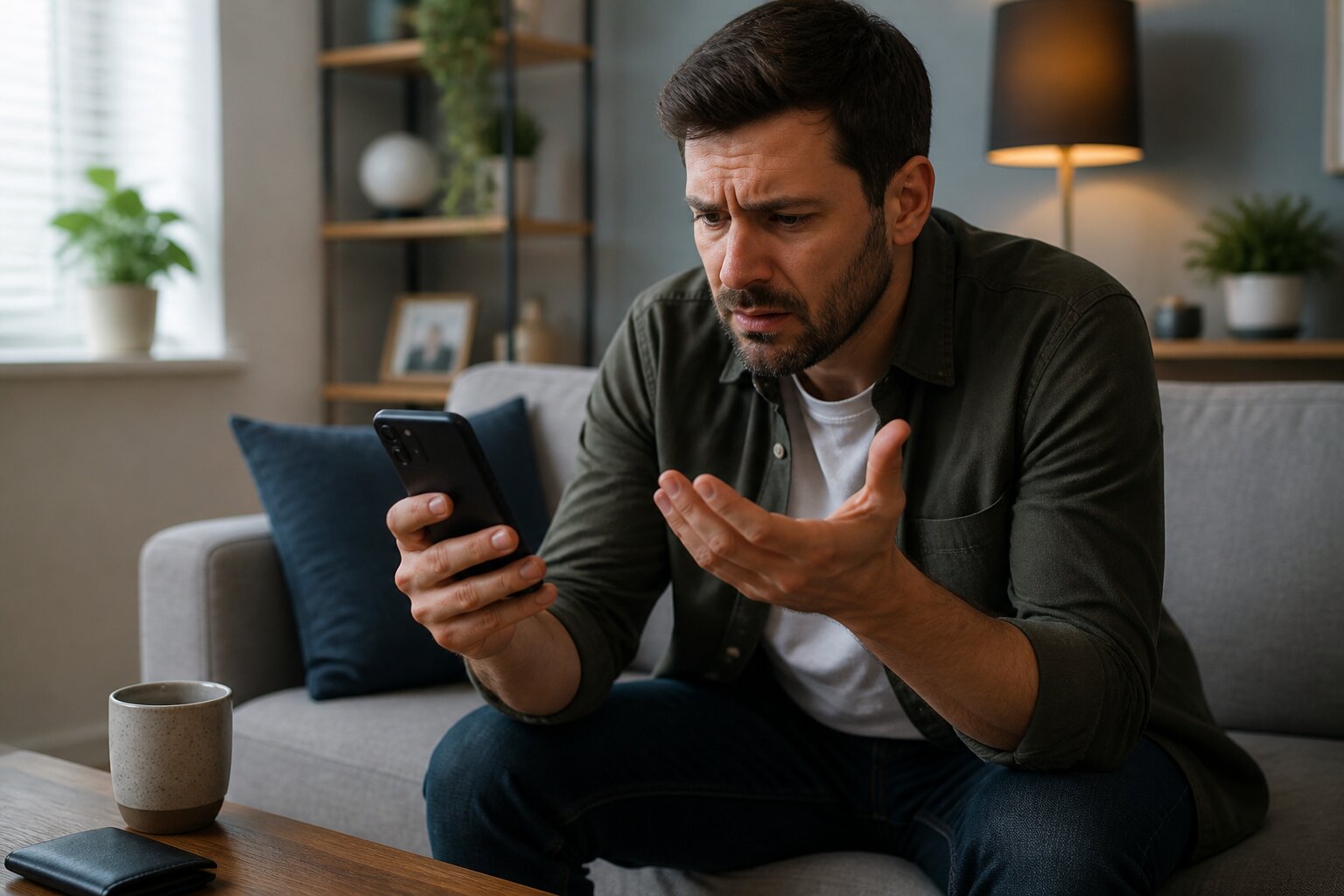
There’s nothing more frustrating than logging into a favourite lottery app and finding it not working or unable to accept payments. Whether the screen freezes, the payment option vanishes, or a "temporarily unavailable" message appears, it can spoil plans in an instant.
These issues are surprisingly common and usually have straightforward causes. Read on to understand the likely reasons and sensible ways to get back to playing without making hasty changes.
Ready to get this sorted? The next sections take you through causes, device checks, payment checks and safer alternatives so you know what to try next.
Common Reasons Why You Can't Add Funds
Payment problems in lottery apps often come down to a handful of familiar issues. Banks or card providers may block transactions to gambling-related services, sometimes as part of their own security or merchant controls. Insufficient funds on the card or in the account will, of course, prevent a top-up from completing.
App-side faults are another frequent cause: an update gone wrong, temporary server outages, or a bug in the payment flow can all interrupt deposits. Simple errors such as using an expired card or mistyping details will also stop a transaction.
Account-level controls play a role too. Deposit limits, recently imposed time-outs, or self-exclusion settings can prevent new deposits even when everything else seems fine. If you suspect account limits are involved, checking the app’s account settings or contacting support will usually reveal the reason.
If none of these possibilities fit, a quick comparison of the app’s payment behaviour with other services can help isolate whether the problem lies with the app or your payment provider — the next section explains how to make that check.
App Temporarily Unavailable: What Does It Mean?
A "temporarily unavailable" notice indicates the service cannot be accessed right now. This can occur during scheduled maintenance when the provider takes systems offline to update software or perform essential work. It can also result from unexpected technical faults such as server failures, database errors, or security protections that trigger a temporary block.
During these outages, repeated attempts to log in or make payments are unlikely to help and in some cases may lead to further security locks. If an unavailability message appears, check the app for any official alerts or the provider’s website for scheduled maintenance windows. Server-side problems are typically resolved by the provider, and status updates will give the best estimate for restoration.
If you need to confirm whether the issue is universal, try accessing the service from another device or network. If the problem persists across different setups, the provider is most likely addressing a platform-wide issue. If it works elsewhere, the problem is more likely to be linked to your device or settings, which the following section covers.
How to Fix Lottery App Issues on Your Device
Many app problems can be resolved by checking device settings and ensuring the software is current. Start with the basics: confirm you have a stable internet connection and close the app completely before reopening it. A simple restart of the device often clears temporary system glitches and restores normal operation.
Keep apps updated through the official store to avoid compatibility issues. If intermittent faults continue, reinstalling the app can clear corrupted files or problematic cached data that interfere with functionality. These steps differ only slightly between platforms, so the sections below give platform-specific guidance.
Troubleshooting on iOS Devices
On Apple devices, close the app from the app switcher and reopen it to see if the issue clears. Check Wi-Fi or mobile data and restart the phone if needed. Visit the App Store for any available updates; installing the latest version can resolve many problems caused by older software. If the app still misbehaves, uninstall and reinstall it, then log in again to refresh any saved settings.
Troubleshooting on Android Devices
On Android, force close the app from the recent apps view or the app settings panel, then try again. Confirm the internet connection and reboot the device when simple fixes do not work. Open the Google Play Store to install any updates. If problems persist, uninstalling and reinstalling the app often removes lingering faults and restores normal function.
Checking for App Updates and Maintenance Alerts
Developers publish updates that fix bugs and improve stability, so regularly installing these updates reduces the chance of encountering errors. Also look for in-app notifications or the provider’s online status page for notices about planned maintenance or known technical issues. Being aware of scheduled downtime prevents unnecessary troubleshooting when the app is intentionally offline.
If device checks do not resolve the problem, it helps to determine whether the issue is on the app’s side or related to your payment method, which the next section explains.
Is the Problem with the App or Your Payment Method?
Determining whether the fault lies with the app or with a payment method narrows the path to a fix. One quick test is to try the same payment method with another legitimate service. If payments succeed elsewhere, the app or your account settings are more likely at fault. If payments fail across services, it points to the bank, card issuer, or e-wallet.
Double-check that the payment instrument is registered in your own name and that details are correct; payments made using someone else’s card are not accepted. Also be mindful of delays caused by additional security checks from banks or temporary holds that financial institutions may place on certain types of payments.
Where the app appears to be the cause, examining account limits and settings can reveal blocks on deposits or other restrictions. If the payment method is the issue, contacting the bank or payment provider will usually explain declined transactions. Knowing which side is responsible makes it easier to choose the right next step, including alternative deposit routes described below.
Alternatives for Adding Funds When the App Fails
When the app will not accept a deposit, there are other legitimate channels to consider. Most providers offer web-based payment through their official site; this typically uses the same security and verification as the app and can succeed even when the mobile client is struggling. Some providers also allow deposits in person at authorised retail locations, which can be useful if online options are unavailable.
Keep in mind that these alternatives are subject to the same payment checks and account controls, so they are not fail-safe. If a bank or card is blocking gambling-related transactions, that restriction will usually apply regardless of the route used. Use these options with the same personal deposit limits and safeguards you would with the app.
If alternatives do not resolve the issue, or if transactions are being declined for unclear reasons, reaching out to the provider’s customer support will help move matters forward.
When to Contact Customer Support and What to Provide
Customer support should be contacted after standard device checks and payment tests have been completed, or immediately if there is suspected unauthorised activity. When contacting support, provide clear, concise information: the account email or username, a description of the problem, the exact text of any error messages, and the date and amount of any affected transactions. Avoid sharing full card or bank details.
Including a screenshot that shows the error without revealing sensitive information can speed diagnosis. Support teams typically guide you through account-related checks and can confirm whether an outage, maintenance, or security hold is causing the problem. This helps determine whether the resolution will come from the provider, your payment service, or by adjusting account settings.
Once support has clarified the cause, they will outline the expected timetable or next steps, which may include waiting for a system fix, adjusting limits, or liaising with a bank.
Staying Safe: Avoiding Scams and Unauthorised Apps
Protecting personal information and money is paramount when using lottery services. Only download official apps from recognised stores and avoid logging in through links received by email or text unless you are certain of the source. Phishing attempts can mimic legitimate messages to harvest passwords or payment details, so never disclose login credentials.
Use strong, unique passwords and enable any available account security features provided by the app. Only use payment methods in your own name and keep records of transactions. If an unfamiliar charge appears or a message asks for personal information, contact provider support immediately.
Keep play within personal deposit limits and monitor activity to maintain control. With these precautions in place, you reduce the risk of fraud and keep funds secure while resolving any technical problems.
Your lottery app should soon be working smoothly again once you follow the checks and steps above; if not, support teams are there to help bring everything back to normal.
**The information provided in this blog is intended for educational purposes and should not be construed as betting advice or a guarantee of success. Always gamble responsibly.